Signing in
Reaching the screen
When the application starts, and as long as no user is signed in, the sign-in screen
appears automatically. It also remains directly accessible at /authentification.
The screen is titled « Saisissez vos identifiants », with the application version shown just below it (for example NervaGest V2.4R01).
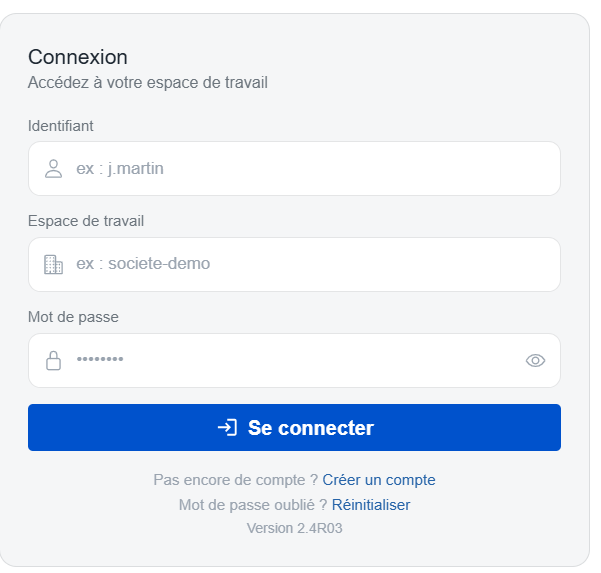
The sign-in screen, with its three fields and the Connexion button.
Fields to fill in
| Field | Description |
|---|---|
| Identifiant | The user's login, usually the email address or the identifier issued by the administrator. |
| Espace | The code of the company (workspace) the user belongs to. |
| Mot de passe | The user's personal password. |
All three fields are required. Confirm with the 🔐 Connexion button or the Enter key.
The username and password are case-sensitive. The Espace code must be typed exactly as it was given to you.
Available actions
- 🔐 Connexion — starts authentication. A loading indicator appears while the check runs.
- Créer un compte — opens the screen for creating a new workspace, at
/register: see Create an account. - Language selector (at the top of the card) — changes the interface language: FR, EN, ES or AR. The current language is shown next to the icon.
- Footer links:
- Mot de passe oublié ? → see Managing your password;
- Aide → email to contact@nervagest.ma;
- Manuel PDF → opens the full user manual as a PDF.
Pre-filling through the URL
The sign-in screen can be pre-filled using URL parameters. This is useful for sending the users of a workspace a ready-made access link.
| Parameter | Effect |
|---|---|
?entreprise=<code> | Fills the Espace field automatically. |
?user=<login> | Fills the Identifiant field automatically. |
?force=true | Forces the Mot de passe field to be cleared. |
Example: /authentification?entreprise=DEMO&user=jdupont
What happens when you sign in
-
You enter Identifiant, Espace and Mot de passe, then confirm.
-
The application queries the authentication server.
-
Depending on the answer:
Result Behaviour Accepted Sign-in succeeded: the session token, your first and last name are stored, your access rights are computed, and you are redirected to the home page. Denied Message « Login ou mot de passe incorrect ». Network error Message « Connecting error ».
See Messages and troubleshooting for what to do in each case.
Modules opened according to your rights
When your session opens, the application works out which modules are available from the privileges returned by the server:
- Customer access
- Technical data
- Sales management — with its sub-rights: viewing and managing customers, editing suppliers, quotations, articles, sales and purchase orders, changing prices on quotations…
- Payroll management
- Financial management
- Production management
- Stock management
- Hotel management
Once you are signed in, the side menu and the home page show only the modules your account is allowed to use.
If your account is flagged as an administrator, all modules and sub-rights are enabled automatically, whatever the individual privileges say.
Data kept during the session
For the duration of the session, the application keeps in memory: the username, the workspace (company), the first and last name, the session token, the language and the full set of access rights. The session token is then sent automatically with the calls made by the other modules.
The token stays active as long as the session is open. On a shared computer, quit the application rather than simply closing the tab.